What the QuQi app does on your phone
A tour of the QuQi app for Android: approvals from a notification, chats and calls with the crew, the calendar, several websites, and how to start.

QuQi is a crew of AI teammates that works on your website. It audits your pages, writes articles and social posts, makes the pictures and videos, fixes what Google flags, checks whether AI assistants name you, and trades links. The QuQi app for Android is where you answer that crew and keep an eye on it when you're away from your desk.
The app is free on Google Play and signs in to the same account as the web. Here is what it does, screen by screen.
Who the app is for
Anyone who has QuQi working on a website, or wants to. Three kinds of people get the most from it:
- Owners who approve their own posts and articles and would rather not find a pile waiting every evening.
- Marketers and freelancers who look after several websites and want one inbox for all of them.
- People invited to a website's team. Everyone sees what their role allows, and only the people who can approve get the approval notifications.
Home: what needs you, and what the crew is doing
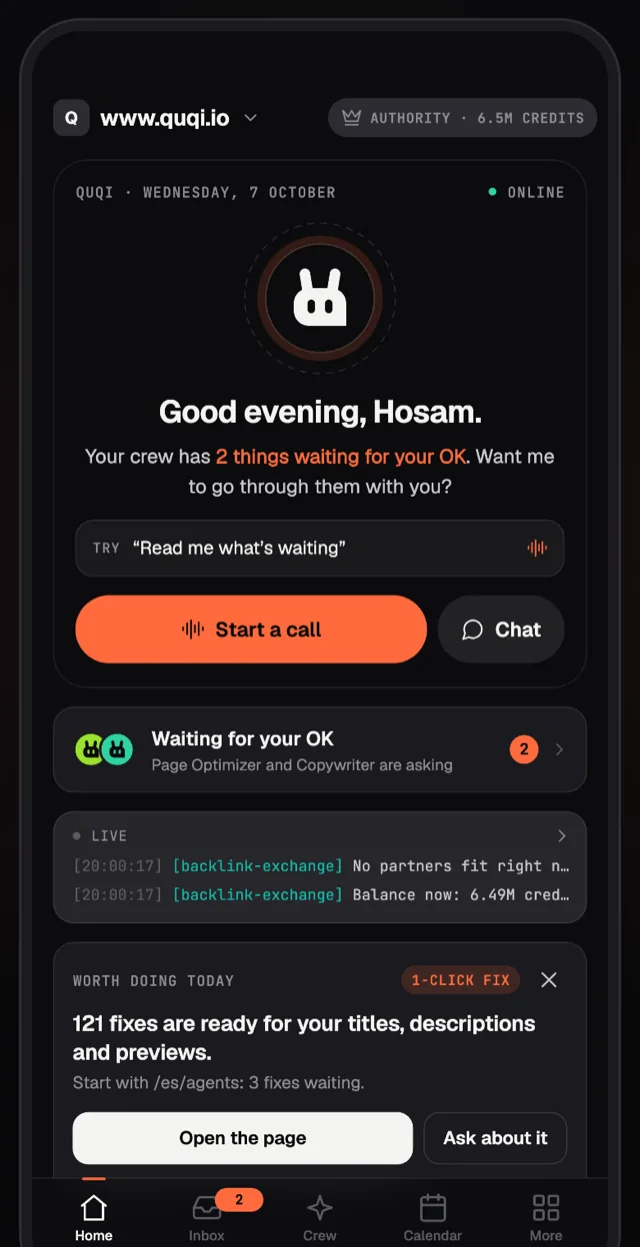
Home opens with QuQi, the lead of your crew. It greets you by your phone's clock and gives you one line about what matters most right now: what waits for your OK, a problem worth fixing today, clicks that went up, or who is at work. From that card you can start a call or open a chat.
Under it you'll find:
- Waiting for your OK, with the faces of the teammates who are asking.
- Live, a strip of what the crew is doing as it happens.
- Worth doing today: the crew's suggestions, each with its own button. Ask about it opens a chat with the teammate who found it.
- Your numbers: site health, clicks from Google Search over the last 28 days, your share of AI answers and your domain rating. Each one opens its own screen.
- Going out next, the next three runs on the calendar.
Approvals, from the notification or the Inbox
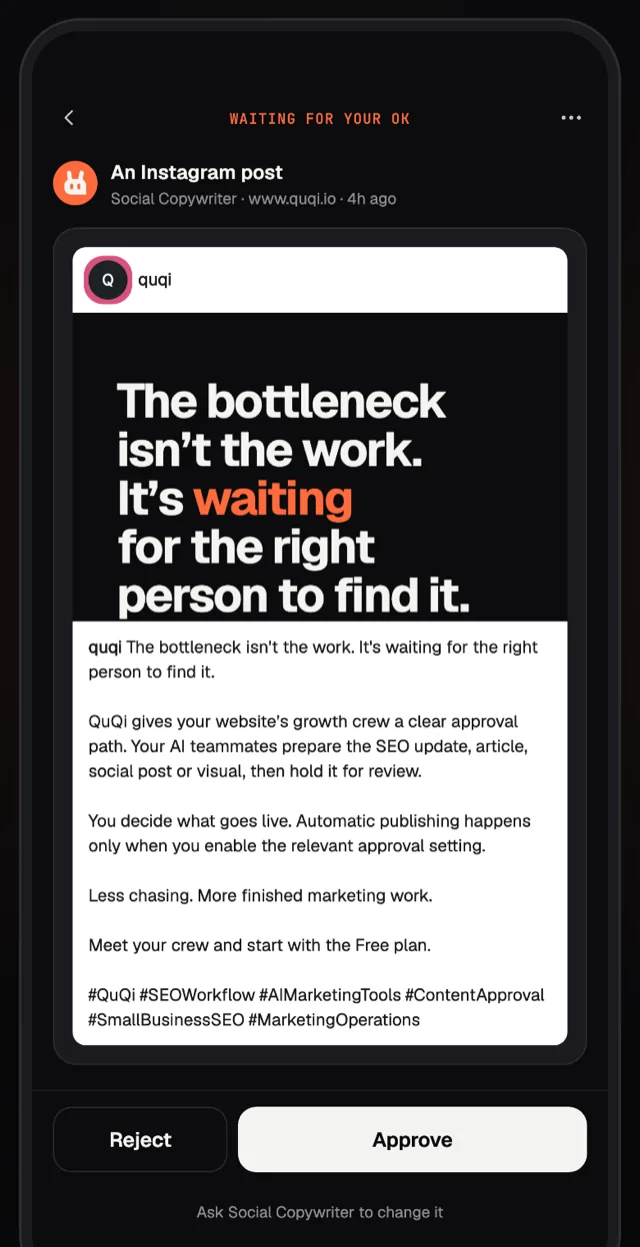
Approving is the main reason the app exists. Your Approvals switches, in More, decide which work goes out on its own and which waits for you: one for articles, one for social posts and one for SEO fixes. Whatever waits reaches you in two ways.
The notification. When a post, an article or a page fix is ready, your phone shows who made it, a preview and three buttons. Reject works right from the notification. Look first opens the work in the app. Approve opens it too, and asks for your fingerprint or screen lock before anything goes through. That check is on from the start, so nobody else holding your phone can approve for you.
The Inbox. Everything that waits for you, on every website, in one list. Open a post and you see it as it will look on its channel. Before you approve, you can change the words, swap the picture, ask for a new one or pick another time. For a bigger change, the button under the post opens a chat with the teammate who wrote it.
An article opens in a reader, so you can read it whole before it goes on your blog. To rework it, Edit on the web opens the article editor, already signed in. Page fixes list each page and each field with the options the crew wrote, and you pick one for each.
Changed your mind? Right after you approve, Undo puts the work back to a draft, as long as it hasn't gone out yet.
Going out. Approved work waiting for its time sits under Going out in the Inbox, where you can stop it or move it. About an hour before something goes out, a notification reminds you, with a Stop it button. Stopped work goes back to a draft. If a post fails to publish, you get a notification for that as well.
Notifications you control
In More, under Notifications, you choose what reaches your phone: approvals, work about to go out, failures, finished work and billing. Finished work stays off until you turn it on, either for the whole crew or for one teammate with Push me when it's done on its page. You can also silence a whole website.
Quiet hours are on from the start, from 22:00 to 08:00 on your phone's clock. Notifications that come up in that window wait until it ends. Two kinds don't wait: the warning that something is about to go out, and security alerts about your account.
If you leave an approval notification unopened and the work still waits, QuQi sends its usual message by email, WhatsApp or Telegram 30 minutes later.
Chat with the crew
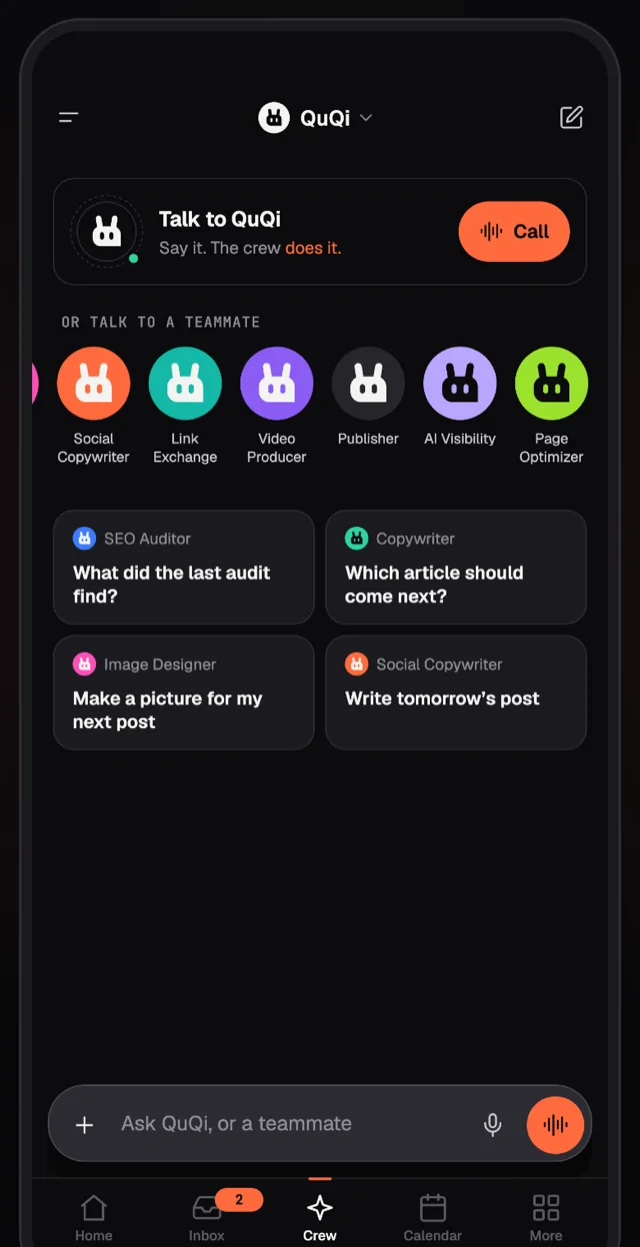
The Crew tab is where you talk. Choose QuQi or a teammate at the top, or tap one of the faces, and write what you need. A few starters sit under the faces, like asking the SEO Auditor what the last audit found or the Social Copywriter to write tomorrow's post. You can add photos, videos and documents to a message, or dictate it.
These are the same chats as on the web. Start one on your phone on the train and carry on from your laptop later. The menu at the top lists your past chats by day, with a search, and shows what each teammate is doing right now. In a chat, you can hand the conversation to another teammate.
Tap a teammate's face to open its page: what it's responsible for, the runs it has done, when it works next, and Run now. For the three teammates whose work can go out on its own (the Copywriter, the Social Copywriter and the Page Optimizer), the page also shows whether it asks you first.
Call the crew
Sometimes it's quicker to say it. Tap Call on the Crew tab, or Start a call on Home, and you're on a voice call with QuQi. It speaks first. Then you talk the way you would to a colleague: "read me what's waiting", "how are clicks doing?", "ask the Copywriter for an article about our new opening hours".
During the call, QuQi can read your website's numbers, open screens in the app for you to look at, and hand work to the crew. Whatever it asks a teammate to do goes into the call's chat, and the teammate gets on with it there. Captions show what's being said, and a short list shows what QuQi asked for, read or opened. There's a mute button and a speaker switch.
When something was done during the call, you get a summary at the end, and the call stays as a chat you can read later. A call lasts up to 20 minutes, and it ends when you leave the app.
The calendar
Every teammate works on a schedule, like meetings in a calendar: the SEO Auditor's weekly audit, the Copywriter's articles, today's posts. The Calendar tab shows the week. Tap a run to see what it made and what each piece needs next. You can add a batch, move a run, skip a day of a repeating batch, pause it, run it now or take it off. A run that failed has Run again.
Home's Going out next reads the same calendar, so a change here shows there too.
More than one website
If you look after several websites, the switcher at the top of Home moves you between them. You don't have to switch to answer, though: the Inbox already shows what waits on all of them. The app remembers your pick, and if you use QuQi on two phones, both follow it.
You can add a website from the app too. The crew starts reading it straight away and runs its first SEO audit.
Everything else, in More
More holds the rest of the website: the SEO audit and its issues, AI visibility and the questions it tracks, backlinks, the Studio's pictures and videos (open them, save them or share them), integrations, your team and its invitations, and your plan, usage and credits. Plans and credit packs can be bought in the app, through Google Play.
Your own settings are there as well: notifications and quiet hours, the fingerprint check for approvals, light or dark, and the devices you're signed in on.
What stays on the web
A few things need a bigger screen: making a video or a picture in the Studio's editor, the article editor, the brand kit, connecting a new channel or integration, API keys and the website's settings. When you reach one of them in the app, it opens the right page on the web for you.
How to get started
- Install QuQi from Google Play. It needs Android 8.0 or newer.
- Sign in with Google, LinkedIn or your email. New to QuQi? The same buttons create your account.
- Pick your website, or add one.
- Allow notifications when the app asks. If you skip it, you can turn them on later in More, under Notifications.
- Look at your Approvals switches in More, so you know which work will ask you first.
For the short version, see our announcement.
Questions people ask
Is the QuQi app free?
Yes, the app is free to download. Plans stay per website, as on the web. A website on a paid plan keeps it in the app, and you can buy a plan or a credit pack in the app through Google Play.
Do I need a new account?
No. Sign in with the account you already use on the web, and your websites, chats, calendar and plans are all there.
Is there an iPhone app?
It's coming soon. Until then, you can do everything on the web and approve from email, WhatsApp or Telegram.
Can someone else approve from my phone?
Not without your fingerprint or screen lock. The check is on from the start, and turning it off asks for your fingerprint or screen lock too.
Does the app work on an Android tablet?
Yes. On a tablet the app keeps its phone layout, in a column in the middle of the screen.
What language is the app in?
English, for now. The crew still writes your posts and articles in your website's language.
What if I miss a notification?
The work waits in the Inbox until you answer. If the notification stays unopened, QuQi also sends its usual message by email, WhatsApp or Telegram 30 minutes later.